



Managing doctor appointments manually can be time-consuming, error-prone, and frustrating for both clinics and patients. Whether you run a small practice or a growing healthcare service, offering a smooth, online booking experience is essential in today’s digital-first world.
With WooCommerce and the PluginHive’s WooCommerce Bookings plugin, you can streamline your appointment system, send automatic confirmations, and manage doctor schedules efficiently. In this guide, we’ll break down the common booking challenges in healthcare and show how WooCommerce and the PluginHive plugin can help you automate scheduling, improve patient experience, and manage your practice more efficiently.
Table of Contents
- Challenges of Managing Doctor Appointments Online
- Automate Medical Appointment Bookings with WooCommerce
- Scale with a Multi-Doctor Marketplace
- Real-World Example
- Final Thoughts
- FAQs
Challenges of Managing Doctor Appointments Online
Whether you’re an independent practitioner or part of a small clinic, managing appointments manually can create bottlenecks. Here are some of the most common challenges doctors face:
1. Overlapping Appointments & Idle Gaps: Without a real-time calendar, it’s easy to accidentally accept overlapping appointments or leave too much idle time between sessions, wasting valuable time.
2. Managing Different Appointment Types: Each consultation, be it a first-time visit, follow-up, or specialist service, requires different timing, pricing, and availability. Manual handling often leads to confusion or missed slots.
3. No Easy Way to Handle Cancellations: Last-minute changes disrupt your schedule. Without a clear cancellation policy or automated handling, you spend more time coordinating than consulting.
4. No Way to Collect Medical Info Before the Appointment: Doctors need context like symptoms, history, or lab reports before a consultation. Most systems don’t collect this info upfront, leading to delays during the session.
5. Patients Forget Appointments: Without automated reminders, patients may miss their slots, resulting in no-shows and lost income.
6. No Calendar Syncing: If bookings aren’t synced with your calendar (Google, iCal, or Outlook), it’s easy to lose track of your day, especially when juggling clinic and personal commitments.
These challenges may seem small individually, but together they create friction for both you and your patients. That’s why a reliable, automated booking system isn’t just helpful, it’s essential.
Automate Medical Appointment Bookings with WooCommerce
Once you’ve identified the gaps in your appointment workflow, it’s time to fix them. With WooCommerce and the PluginHive’s Bookings and Appointments plugin, doctors can easily offer real-time appointment scheduling, manage multiple consultation types, and stay focused on patient care.
- To get started, make sure the Bookings and Appointments plugin is installed and configured properly.
Follow this quick setup guide to begin:
Bookings Plugin Setup Guide
.
Here’s how the plugin helps you bring automation and clarity into your appointment flow:
1. Offer Different Appointment Types (General, Specialist, Procedures)
You can create separate products for different consultation types, such as general check-ups, specialist visits, or diagnostic procedures. Each appointment type can have its:
- own duration:

- Custom pricing

Learn how to set up booking costs in WooCommerce.
- Specific availability
Learn how to manage booking availability.
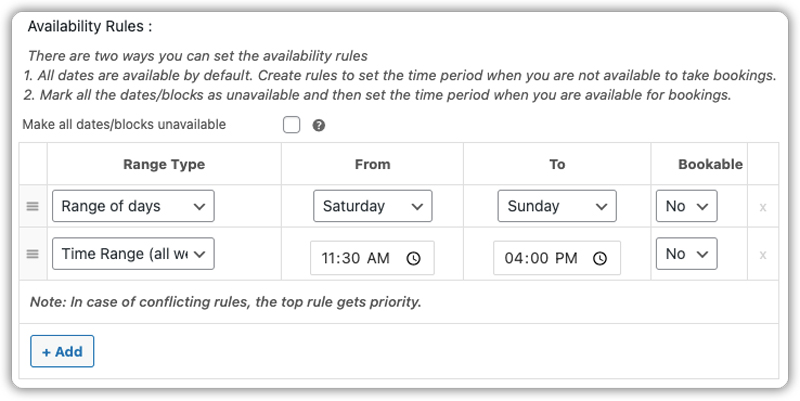
This ensures that your calendar reflects your true capacity, and patients can choose exactly what they need without confusion.
2. Set Time Slots with Buffers to Avoid Overlaps
Use the plugin’s settings to define fixed time slots for your consultations. You can add buffer time between appointments to avoid back-to-back bookings and give yourself space for preparation or overruns.

See how to configure buffer time between the bookings.
This prevents burnout and ensures a smooth flow throughout the day.
3. Flexible Cancellation Options
With WooCommerce Bookings, you can define cancellation windows (like 24 or 48 hours before the slot), so patients can’t cancel too close to the appointment. This protects your time and reduces disruptions.

Understand how to enable and control booking cancellations.
This is exactly how patients will experience the online doctor appointment booking on your website’s frontend:
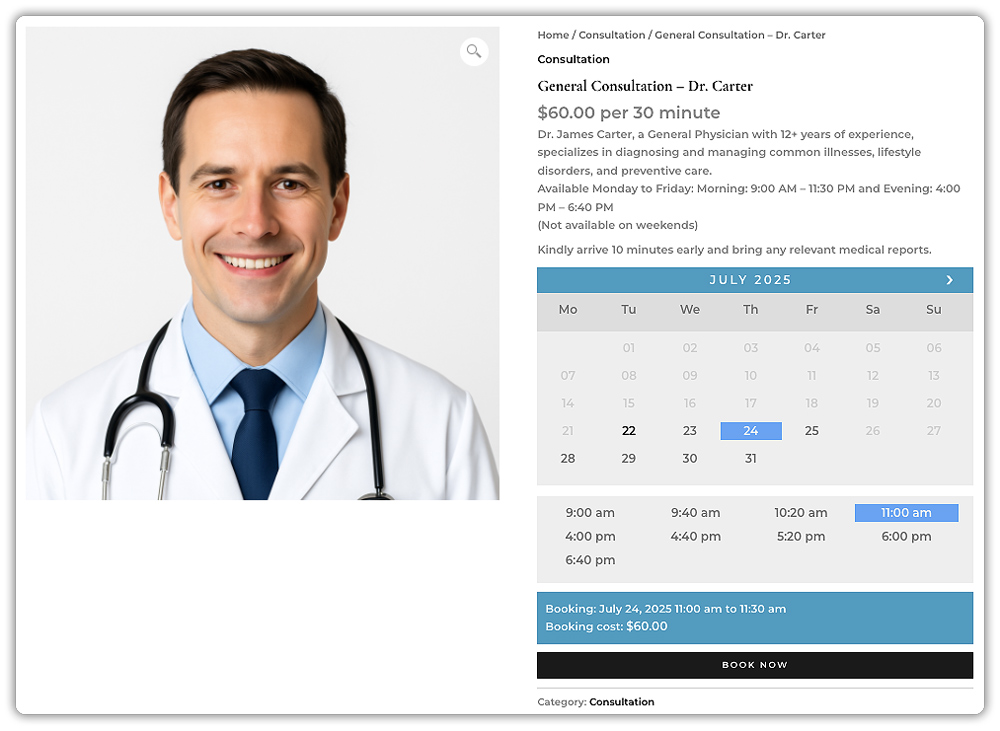
4. Collect Patient Info Upfront
With PH WooCommerce Product Add-Ons, you can collect relevant medical details during booking. Patients can share symptoms, upload documents, or choose between online and in-person consultations. This ensures doctors are prepared ahead of time, saving everyone time during the actual session.
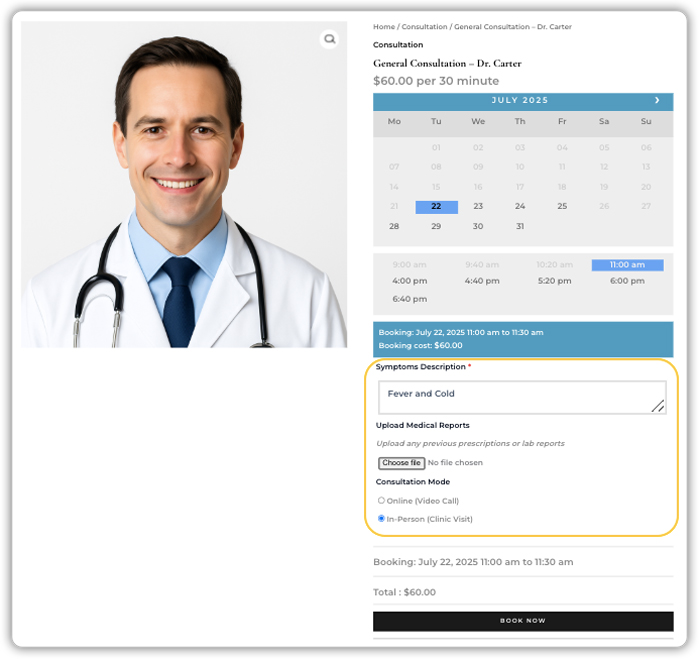
See how to set up the booking form add-ons.
5. Automated Email Notifications
Send automatic email confirmations and reminders to patients before their appointments. You can customize these emails to include instructions, location details, or what to bring. This reduces no-shows and ensures everyone stays informed.
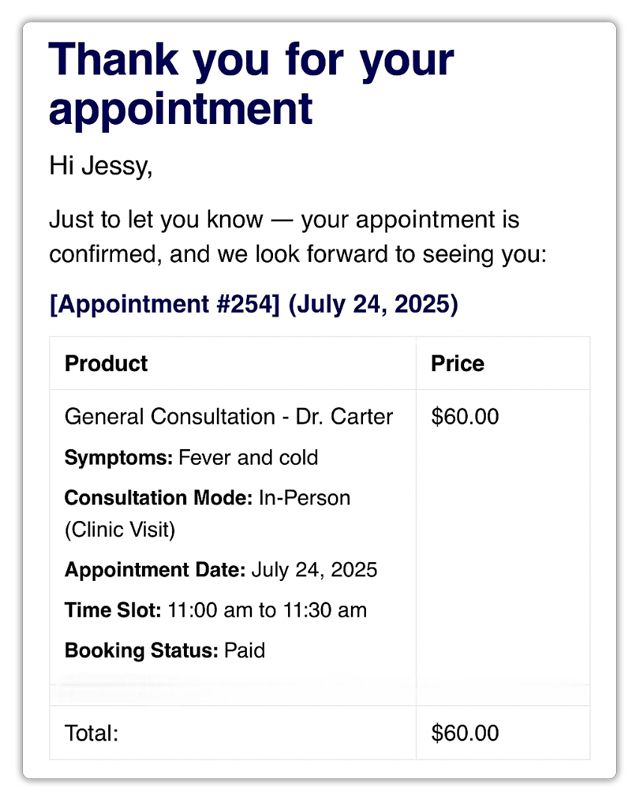
Set up email notifications and booking reminders.
6. Sync Bookings with Calendar
Doctors or admins can sync appointments directly to their Calendars (Google, iCal, or Outlook), ensuring no bookings are missed, even when juggling clinic hours and personal commitments.
Get here about syncing bookings with Google Calendar.

Learn to sync bookings with Microsoft Outlook.

Get to know about exporting bookings to iCalendar.

Patients can also add their confirmed appointments to their Google calendars with a single click

Need to handle follow-up appointments? For recurring sessions like weekly therapy or post-surgery check-ins, you can automate repeat bookings using the WooCommerce Recurring Bookings and Appointments plugin. Patients can book once and be scheduled for a series of follow-ups, saving time for both sides.
With WooCommerce Bookings, your entire appointment workflow becomes streamlined, saving time, reducing no-shows, and letting you focus more on patient care.
Scale with a Multi-Doctor Marketplace
If your clinic or healthcare platform has multiple doctors, how you manage bookings depends on how much control you want to give each doctor.
Option 1: You Handle the Scheduling
You can set up each doctor as a separate bookable product using the WooCommerce Bookings and Appointments plugin. This works well if you manage everything from doctor availability to pricing and appointments from a central dashboard.
Patients will simply pick their preferred doctor and choose a time slot, just like we explained earlier.
Option 2: Let Doctors Manage Their Bookings
If you want each doctor to take charge of their schedule, pricing, and availability, you can build a multi-doctor booking platform. This model works especially well for telemedicine sites, specialist directories, and city-wide doctor aggregators where each practitioner manages their availability independently.
To make this work, you’ll need three plugins working together:
- Dokan – To allow each doctor to have their account and dashboard
- WooCommerce Bookings and Appointments – To handle the actual bookings
- PH Dokan Bookings Integration for WooCommerce – To connect the above two plugins seamlessly
What Doctors Get:
- Their dashboard to manage availability, consultation types, and pricing
- The ability to view upcoming appointments and patient uploads
- Full control over their schedule, without needing admin help
What You Get (as the Platform Owner):
- A smooth way to grow your clinic or health network without micromanaging each doctor
- Revenue from commissions or subscriptions
- A flexible, hands-off system that scales as you grow
Whether you’re managing a small clinic or building a health platform across cities, this approach gives you the flexibility to grow while letting doctors focus on what they do best: treating patients.
Real-World Example: Managing a Multi-Specialty Clinic with WooCommerce
Let’s say you run a growing medical clinic that offers general consultations, pediatric care, dermatology, and physiotherapy. Patients can book appointments through your WooCommerce store, either with a specific doctor or based on specialty.
The Challenges You Will Face
- Patients often call or message to check availability, leading to constant back-and-forth and errors in scheduling.
- Without a proper system, overbookings occur when two receptionists book the same slot from different sources.
- Last-minute cancellations aren’t managed well, leaving gaps in your day that could’ve been rebooked.
- Payments are collected only at the clinic, leading to frequent no-shows and cash flow issues.
- You want to scale by adding more doctors, but managing everyone’s schedule from a single dashboard is chaotic.
How It Can Be Solved
With the WooCommerce Bookings and Appointments plugin by PluginHive, you can simplify appointment management:
- Allow patients to view doctor availability in real-time and book appointments directly on your site, no calls, no confusion.
- Set buffers between appointments and restrict last-minute bookings to maintain control over your daily flow.
- Set clear cancellation rules, such as minimum notice periods, so that patients know when they can cancel and free up that slot for someone else to book.
- Collect payments upfront or partially using the PH WooCommerce Deposits plugin, reducing no-shows and improving revenue predictability.
- As your clinic grows, you can give each doctor control over their own availability, pricing, and appointments with Dokan, PluginHive’s WooCommerce Bookings plugin, and the Dokan WooCommerce Bookings Integration. Each doctor gets their own dashboard to manage bookings independently, perfect for multi-specialty or city-wide clinics.
With WooCommerce and PluginHive’s booking solution, your clinic becomes more organized, scalable, and patient-friendly, so you spend less time coordinating and more time delivering care.
Final Thoughts
Scheduling doctor appointments doesn’t have to be complex. With WooCommerce Bookings and Appointments by PluginHive, you can automate everything from booking in-person or virtual consultations to collecting payments and sending reminders all within your WooCommerce store.
Whether you’re a solo practitioner or managing a multi-specialty clinic, the plugin helps you streamline operations, reduce no-shows, and offer a seamless booking experience for patients.
Need help setting it up? Reach out to PluginHive Support for personalized assistance tailored to your healthcare business.
FAQs
1. Can I allow both in-person and virtual appointments with WooCommerce Bookings?
Yes, WooCommerce Bookings allows you to create different appointment types so you can offer both in-person visits and virtual consultations based on patient preference.
2. Can I allow patients to choose between online and in-clinic consultations?
Yes, using PH WooCommerce Product Add-Ons alongside WooCommerce Bookings, you can give patients the option to choose their preferred consultation mode during the booking process.
3. Does WooCommerce Bookings support recurring or follow-up appointments?
Yes, with the Recurring Bookings add-on, you can set up repeat appointments or follow-up consultations, making it easy to manage ongoing treatment schedules.
4. Can I run a multi-doctor booking platform like Practo?
Yes, with the Dokan plugin and Dokan WooCommerce Bookings Integration, you can build a scalable, decentralized booking system where each doctor manages their bookings.
5. Does WooCommerce Bookings support appointment reminders for patients?
Yes, WooCommerce Bookings can automatically send email confirmations and reminders before each scheduled appointment, helping reduce no-shows and improve patient engagement.
