


Running a WooCommerce booking business means your revenue is directly tied to how many slots you fill. But taking more bookings isn’t the only way to grow – earning more from each booking is just as powerful. Most service-based stores leave money on the table simply because their booking page offers no way for customers to add extras at the point of purchase.
This article shows you how to increase average order value (AOV) by offering paid upgrades and optional services directly on your WooCommerce booking product page – without any manual follow-up.
On This Page
- What Is Average Order Value and Why It Matters for WooCommerce Booking Businesses
- Why Your WooCommerce Booking Page Is the Best Place to Upsell
- Two Ways to Add Paid Extras to WooCommerce Booking Products
- Types of Paid Upgrades You Can Offer on WooCommerce Bookings
- Example Scenario
- Tips to Increase AOV on Your WooCommerce Booking Store
- Conclusion
- FAQs
What Is Average Order Value and Why It Matters for WooCommerce Booking Businesses
Average order value (AOV) is the average amount a customer spends per transaction. For a WooCommerce booking business, this means the average revenue you earn per booking, not just the base slot price.
Increasing AOV is one of the most cost-effective ways to grow your revenue. You’re already getting the customer to book. Offering them relevant extras at that moment costs you nothing extra in marketing, and many customers are happy to pay for convenience or a better experience.
The challenge is that most WooCommerce booking pages only show a calendar and a price. There’s no structured way to present upgrades or collect payment for them at checkout. The sections below show you exactly how to fix that.
Why Your WooCommerce Booking Page Is the Best Place to Upsell
Customers are most ready to spend when they’re already in the process of booking. They’ve decided to buy – your job is simply to make it easy for them to add more.
Presenting extras via emails or phone calls after the booking is placed rarely works. Customers have moved on, and the offer feels like an afterthought. Putting paid options directly on the WooCommerce booking product page means:
- Customers see the options while they’re actively engaged
- Payment for extras happens at the same checkout – no second transaction
- Your orders arrive complete, with all service details and payments captured upfront
With that in mind, here are the two ways you can add paid extras to your WooCommerce booking page.
Two Ways to Add Paid Extras to WooCommerce Booking Products
The Bookings and Appointments for WooCommerce plugin gives you two approaches to offer paid extras on your booking page. You can use one or both, depending on how much flexibility you need.
Option 1: Booking Resources (Built into the Bookings Plugin)
Booking Resources is a built-in feature of the Bookings and Appointments plugin. It lets you add one or more checkboxes or a dropdown alongside the booking calendar, where customers can select additional items or services at the time of booking.
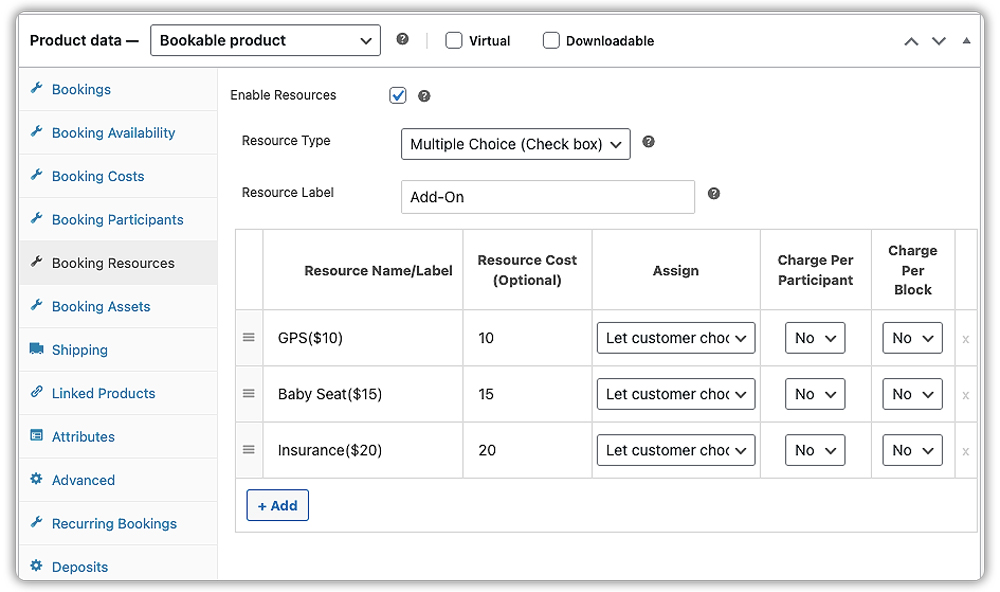
You can assign a price to each resource, and the total updates accordingly. It works well for straightforward extras that follow a simple selection pattern – for example, a car rental business offering GPS navigation, a child seat, or insurance as optional add-ons that customers can tick off while choosing their rental dates.
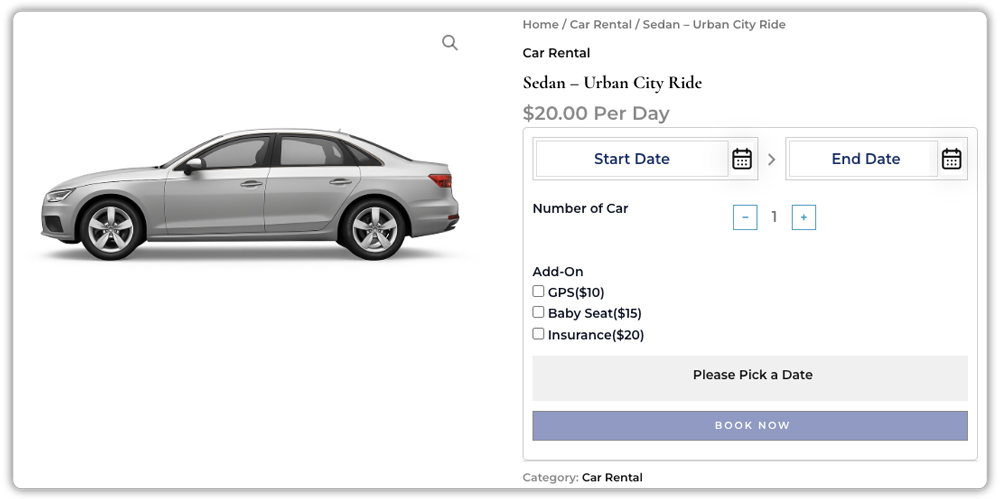
Booking Resources is best when your extras are fixed, predefined options that don’t require complex field types or conditional rules. If you need more than that, Option 2 covers you.
Option 2: PH Product Add-ons (For More Flexible Extras)
For more structured or varied input types, the PH Product Add-ons for WooCommerce plugin extends what’s possible on your WooCommerce booking page. It’s fully compatible with the Bookings and Appointments plugin and adds a wider range of field types – dropdowns, radio buttons, checkboxes, text inputs, file uploads, date pickers, and more.

Each field can carry its own price – flat fee, percentage of the booking total, or quantity-based. If you’re already familiar with adding extra fees in WooCommerce using Product Add-ons, the setup for booking products follows the same approach.

You can also use conditional logic to show certain options only when a customer selects something specific, keeping the booking form clean and relevant.


Use Product Add-ons when you need more than simple checkboxes – for example, a dropdown with different prices per option, a file upload field, a colour picker, or conditional logic that shows fields only based on what a customer selects first.
Types of Paid Upgrades You Can Offer on WooCommerce Bookings
What you offer depends on your business type. Here are practical examples across different WooCommerce booking industries:
For tour and activity businesses:
- Airport or hotel pickup – flat fee per booking
- Private guide upgrade – percentage add-on on top of base tour price
- Packed lunch or meal package – checkbox option with a fixed price
- Photography package – optional extra selected at booking time
If you’re setting up a tour booking business from scratch, the WooCommerce tour bookings guide covers availability, pricing, and participant management in full.
For salons, spas, and wellness studios:
- Premium product upgrade – e.g. organic products instead of standard (+$15)
- Add-on treatment – e.g. scalp massage added to a haircut booking
- Post-session product bundle – e.g. a take-home care kit added at the time of booking
If you’re setting up a salon booking business, see Streamline Salon Appointments with Bookings and Appointments for WooCommerce for a detailed guide.
For rental businesses:
- Insurance or damage waiver – checkbox with flat fee
- Delivery and pickup service – an optional extra on rental bookings
- Premium equipment tier – dropdown to select standard or pro-grade equipment
If you manage an event or venue rental business, the event space rentals with WooCommerce Bookings article shows how to offer décor, catering, and sound add-ons alongside bookings.
Classes and Workshops
- Course materials or workbook – e.g., printed workbook added to a pottery or cooking class booking
- 1-on-1 coaching session – e.g., a private follow-up session offered as a paid upgrade at class booking time
- Recording access – e.g., optional video recording of the session for online or hybrid classes
These are just starting points – any WooCommerce booking business that offers a service can find relevant paid extras to attach to the booking page.
Example Scenario: WooCommerce Booking Business Adding Paid Extras
Let’s say you run a WooCommerce store offering wellness appointments – massage therapy, yoga sessions, or similar services billed by the hour, and you want to increase what customers spend per visit. Here’s what you’re likely dealing with.
Challenges You’re Probably Facing
- Customers book the base session, and you offer extras over the phone or email after – most don’t follow through
- You’re manually invoicing for add-ons like aromatherapy oils or extended sessions
- Your WooCommerce booking page shows only a calendar and a base price, with no room to present premium options
- Revenue per appointment stays flat even as your client list grows
How Booking Resources and Product Add-ons Solve This
With Booking Resources and PH Product Add-ons for WooCommerce working together on your bookable product, customers see paid upgrade options directly on the WooCommerce booking page – right before they confirm:
- A Booking Resource checkbox to add aromatherapy (+$10) – simple, no extra plugin needed
- A dropdown via Product Add-ons to choose a preferred therapist or specialist (+$15)
- A radio button to select standard or premium product range (+$15)
- A checkbox via Product Add-ons for a pre-session consultation call (+$20)
Results
- Extras are presented at the moment customers are most ready to spend
- Payment for all upgrades is captured at checkout – no manual invoicing
- Order details arrive complete with all selected services and the updated total
- Customers who want extras can find and add them without contacting you
- Per-booking revenue increases without any additional marketing spend
Once your resources and add-on group are set up and assigned to your WooCommerce booking product, upselling becomes part of every booking – not something you chase manually after the fact.
Tips to Increase AOV on Your WooCommerce Booking Store
Getting add-ons to actually increase AOV comes down to a few setup choices that are easy to overlook. If you run a service-based business, the WooCommerce Product Add-ons for service-based businesses article covers additional use cases worth reading alongside this one.
- Start with Booking Resources for simple extras: If your paid extras are straightforward checkbox selections with fixed prices, Booking Resources handles this without needing an additional plugin. Add Product Add-ons only when you need more field types or conditional logic.
- Keep the number of options focused: Three to five well-chosen extras work better than a long list. Too many options slow customers down and can lead to them skipping all of them.
- Price extras relative to the booking value: A $5 add-on on a $200 booking feels easy to say yes to. Think about the ratio, not just the absolute price.
- Use conditional logic for relevant-only options: Show a “meal preference” field only when a customer selects a full-day tour, for example. This keeps your WooCommerce booking page focused and makes each option feel relevant rather than generic.
- Assign add-on groups at the category level: If you have multiple bookable products in the same category, create one add-on group and assign it to the whole category. You set it up once, and every product in that category inherits it automatically.
Small setup decisions like these make a real difference in how consistently customers select and pay for your extras and how much your per-booking revenue grows over time.
Conclusion
Increasing AOV in a WooCommerce booking business doesn’t require more traffic or more bookings – it requires giving customers a clear, easy way to spend more at the moment they’re already buying. With Booking Resources handling simple extras natively and PH Product Add-ons for WooCommerce extending what’s possible for more complex setups, every WooCommerce booking becomes an opportunity to earn more without extra effort. If you need help setting this up for your specific business, reach out to the PluginHive support team.
FAQs
Q: What does it mean to increase average order value?
Increasing average order value (AOV) means getting customers to spend more on each booking by purchasing additional services, upgrades, or extras.
Q: How do you increase average order value?
You can increase AOV by offering paid upgrades, premium options, and add-on services during the booking process.
Q: What types of paid extras can I offer with WooCommerce booking products?
Common paid extras include premium packages, transportation services, equipment upgrades, insurance, meal packages, private sessions, and VIP experiences.
Q: What businesses benefit most from offering booking add-ons?
Tour operators, salons, spas, rental businesses, event venues, coaches, and training providers can all increase revenue by offering booking add-ons.
