


When customers place an order on your WooCommerce store, the questions start almost immediately – “Has it shipped yet?” and “Where is my package?” Without a proper system in place, you end up answering these manually, one by one, while your inbox fills up. The problem isn’t just time – it’s that WooCommerce doesn’t automatically add tracking information to your order emails out of the box.
This article shows you exactly how to add a tracking number to WooCommerce emails and send shipment tracking emails to customers automatically, using the Shipment Tracking Pro for WooCommerce plugin.
On This Page
- Why WooCommerce Doesn’t Send Tracking Emails by Default
- How WooCommerce Shipment Tracking Pro Automates This
- How to Add a Tracking Number to WooCommerce Emails
- Tips to Get the Most Out of Shipment Tracking Emails
- Conclusion
- FAQs
Why WooCommerce Doesn’t Send Tracking Emails by Default
WooCommerce sends an order completion email when you mark an order as “Completed.” That email covers the order summary, billing details, and a thank-you message – but it has no field for a tracking number.
To actually add a tracking number to that email, you need to input it manually into each order, and even then, WooCommerce won’t automatically include it in the email unless you have a plugin that hooks tracking data into the order completion email template.
For stores shipping even 20–30 orders a day, doing this manually is not realistic. That’s where the Shipment Tracking Pro for WooCommerce plugin comes in.
How WooCommerce Shipment Tracking Pro Automates This
Shipment Tracking Pro for WooCommerce handles the entire tracking email workflow automatically. Once you add tracking information to an order and mark it complete, the plugin attaches the tracking details to the WooCommerce order completion email and sends it to the customer – no extra steps required on your end.
Here’s what the plugin does:
- Adds tracking number and carrier name directly to the order completion email
- Includes a clickable tracking link so customers can check their shipment status instantly
- Supports 80+ carriers, including UPS, FedEx, USPS, DHL Express, Canada Post, Australia Post, and more
- Sends live status update emails as the shipment moves through each stage (for supported carriers with API credentials configured)
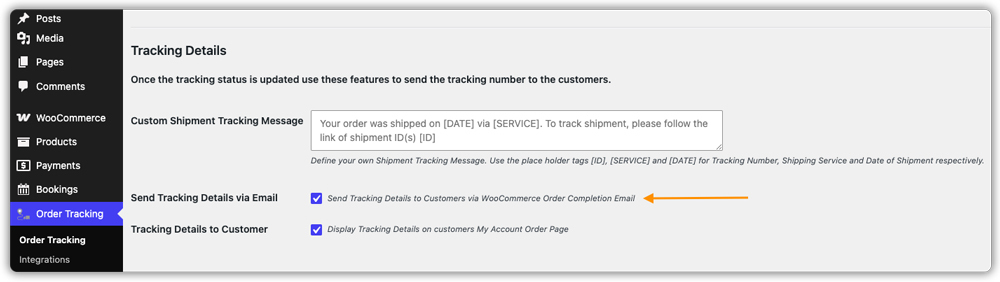
- Let you add custom text alongside the tracking details in customer emails
- Displays tracking info on the My Account page so customers have a second place to check
You can also import tracking data in bulk using a CSV file – useful if you manage fulfilment through software like UPS WorldShip or Royal Mail Click & Drop. The plugin reads the file, matches each tracking number to the right order, marks orders as complete, and triggers the email – all without manual input on your side. See the bulk CSV import guide for details on setting that up.
How to Add a Tracking Number to WooCommerce Emails
Follow these steps to start sending shipment tracking emails to your customers automatically:
Add your shipping carrier: Go to the plugin settings and click Add Carrier. Select your carrier from the list (e.g., UPS, FedEx, USPS). You can also add a custom carrier if yours isn’t in the default list by entering its tracking URL manually.


Enable tracking in the order completion email: In the plugin settings, enable the option to attach shipment tracking details to the WooCommerce Order Completion Email. Once this is enabled, the tracking number and link will appear in every completion email automatically.
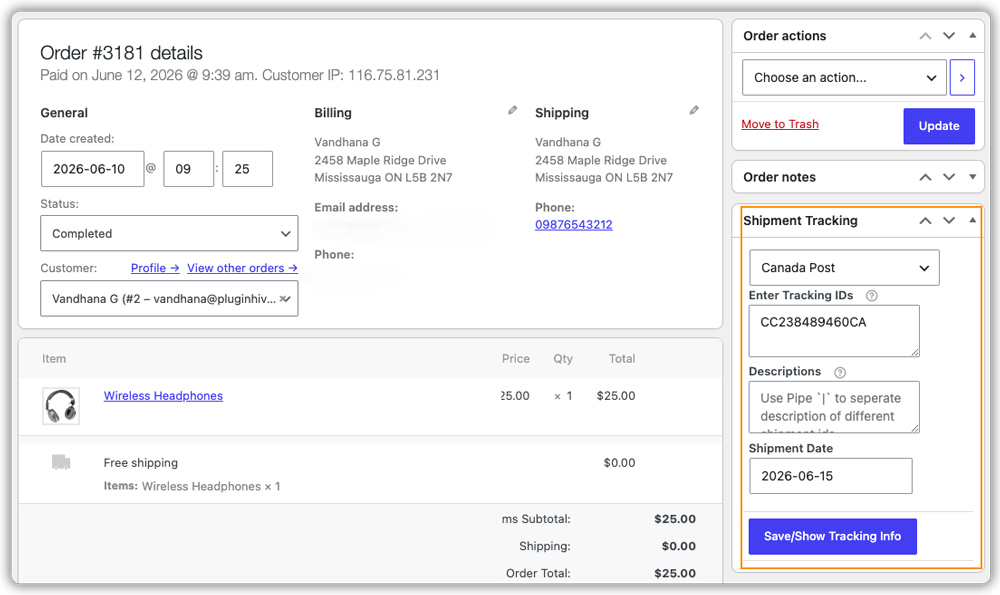
Add tracking info to an order: Open any order in WooCommerce > Orders. You’ll see a Shipment Tracking section where you can enter the carrier, tracking number, and shipping date. Click Save/Show Tracking Info to save and trigger the email.
Mark the order as Completed: Once you mark the order as Completed, WooCommerce sends the order completion email – now including the tracking number, carrier name, and a direct tracking link.
What the Customer Sees in the Email
The order completion email the customer receives includes all the standard WooCommerce order details, plus the tracking section added by the plugin. That section shows:
- Carrier name (e.g., FedEx, UPS)
- Tracking ID as a clickable link
- Shipping date
- Any custom message you’ve configured
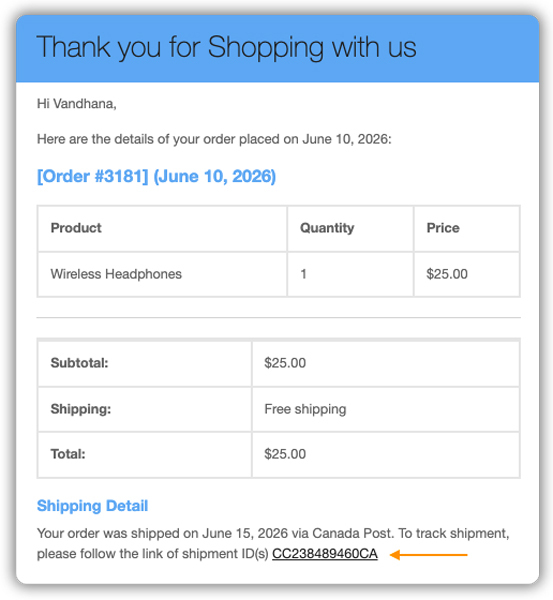
Customers don’t need to log in or go anywhere special – they can click the link directly from their email to check the delivery status.
Tips to Get the Most Out of Shipment Tracking Emails
Getting the most out of WooCommerce shipment tracking emails comes down to a few setup choices that are easy to overlook. For a related read, check out how Shipment Tracking Pro improves the overall customer experience.
- Enable live tracking email notifications for supported carriers: For carriers like UPS, FedEx, USPS, DHL Express, and others where you’ve configured API credentials, the plugin can send customers an email at every status update – not just at dispatch. This is one of the most impactful features for reducing support queries.
- Add a custom tracking message: The plugin lets you add your own text alongside the tracking details in the email. Use this to set delivery expectations, share your return policy link, or simply add a personal touch. It’s a small change that makes the email feel less automated.
- Set up a branded tracking lookup page: The plugin lets you add a tracking page directly on your WooCommerce store using a shortcode. Customers can enter their order details and check status without leaving your site – keeping the experience on your brand, not the carrier’s website.
- Set up FTP/SFTP import for hands-free tracking updates: If your fulfilment software automatically drops tracking files to a server, the plugin can pull them in via FTP/SFTP – no manual uploads needed. It matches tracking numbers to orders, marks them complete, and triggers the emails automatically.
- Check that the “Order Completed” email is enabled in WooCommerce: The tracking email rides on WooCommerce’s built-in order completion email. Go to WooCommerce > Settings > Emails and confirm the “Completed Order” email is active before testing.
These small adjustments can make a noticeable difference in how your store communicates with customers after an order ships.
Conclusion
Sending shipment tracking emails in WooCommerce automatically doesn’t require complex setup – it just requires the right plugin. With Shipment Tracking Pro for WooCommerce, you can add a tracking number to every WooCommerce order completion email, send live status updates as shipments progress, and give customers a self-service tracking experience directly on your store. If you need help getting set up or run into questions, the PluginHive support team is available to assist.
FAQs
Q: Can I add a tracking number to a WooCommerce email without a plugin?
WooCommerce doesn’t include a built-in tracking field in its order completion email. You’d need to manually edit email templates or use a plugin. The Shipment Tracking Pro for WooCommerce plugin handles this without any code changes.
Q: Does WooCommerce shipment tracking work with all carriers?
The plugin supports 80+ carriers out of the box, including UPS, FedEx, USPS, DHL Express, Canada Post, and Australia Post. If your carrier isn’t listed, you can add it as a custom carrier using its tracking URL.
Q: Can I customise what the tracking email says in WooCommerce?
Yes. The plugin lets you add custom text alongside the tracking details that appear in the email. You can use this to include delivery estimates, instructions, or a note from your store.
