



Running a WooCommerce store that offers bookings or appointments can be both exciting and challenging. While it opens up new revenue opportunities, even small mistakes in managing your booking system can lead to scheduling conflicts, missed appointments, and frustrated customers. For WooCommerce store owners, understanding these common pitfalls is the first step toward running a smoother, more efficient booking operation.In this guide, we’ll walk you through common booking mistakes and how to avoid them to improve the booking process and customer experience in your WooCommerce store.
Table of Contents
- Not Choosing the Right WooCommerce Booking Plugin
- Not Configuring Booking Availability Correctly on Your WooCommerce Store
- Locking Your WooCommerce Booking System to a Single Time Zone
- Not Providing Flexible Booking Options in WooCommerce
- Overlooking WooCommerce Payment and Cancellation Policies
- Not Automating WooCommerce Booking Emails and Reminders
- Ignoring the WooCommerce Booking Calendar Interface
- Conclusion
- FAQs
1. Not Choosing the Right WooCommerce Booking Plugin
WooCommerce doesn’t have a built-in system to manage appointments, so trying to handle them manually can be time-consuming and prone to errors. Without a proper plugin, you risk double bookings, scheduling conflicts, and frustrated customers.
For example, if you run a salon, you need a system that manages multiple services (like haircuts, colouring, and treatments), assigns bookings to the right staff, and prevents overlapping appointments. A basic plugin or manual system won’t handle these needs, creating instant confusion for both you and your customers.
Solution: Choose a booking plugin built specifically for WooCommerce and your business type. Look for features like:
- Custom availability rules
- Flexible booking durations (hourly, daily, or multi-day)
- Automated confirmations and reminders
- Calendar sync (Google, Outlook, iCal )
The Bookings And Appointments for WooCommerce by PluginHive includes all these features and more. It’s designed to simplify scheduling, reduce manual work, and give both store owners and customers a seamless booking experience from start to finish.
2. Not Configuring Booking Availability Correctly on Your WooCommerce Store
Many WooCommerce store owners install a booking plugin and leave the default settings untouched, assuming it’ll work fine on its own. But every business has different hours, service durations, and staff schedules that must be reflected in the system.
If these settings aren’t configured correctly, you may face overbookings, empty calendar gaps, or frustrated customers. Your team might also waste time manually fixing scheduling conflicts.
Solution: Take time to set up your booking system properly. With the Bookings And Appointments for WooCommerce plugin, you can:
- Set working hours and availability for each service or staff member
- Define booking durations and buffer times to prevent overlaps
- Control how and when customers can book
PluginHive’s detailed Bookings setup guide makes the process simple, helping you configure everything correctly from day one. Proper setup saves time, prevents confusion, and ensures a smooth booking experience for both you and your customers.
Note: If you want more detailed tips, check out the guide on WooCommerce Booking Settings.
3. Locking Your WooCommerce Booking System to a Single Time Zone
If your business serves customers across different regions, ignoring time zones can be a costly mistake. Many store owners keep their system locked to their own local time zone, without realizing that customers in other areas may see incorrect slot timings.
For example, if you run an online yoga class in India and a student from the UK books, they might see the class time in your timezone. Without automatic adjustment, they could join at the wrong time and miss the session.
Solution: Ensure your booking system automatically adjusts to your customers’ local time zones and preferences. With the Bookings And Appointments for WooCommerce, you can:
- Automatically display booking times in your customer’s local time zone
- Offer clear communication about booking start times, no matter where the customer is located
- Manage your business hours while keeping the booking process smooth for global customers
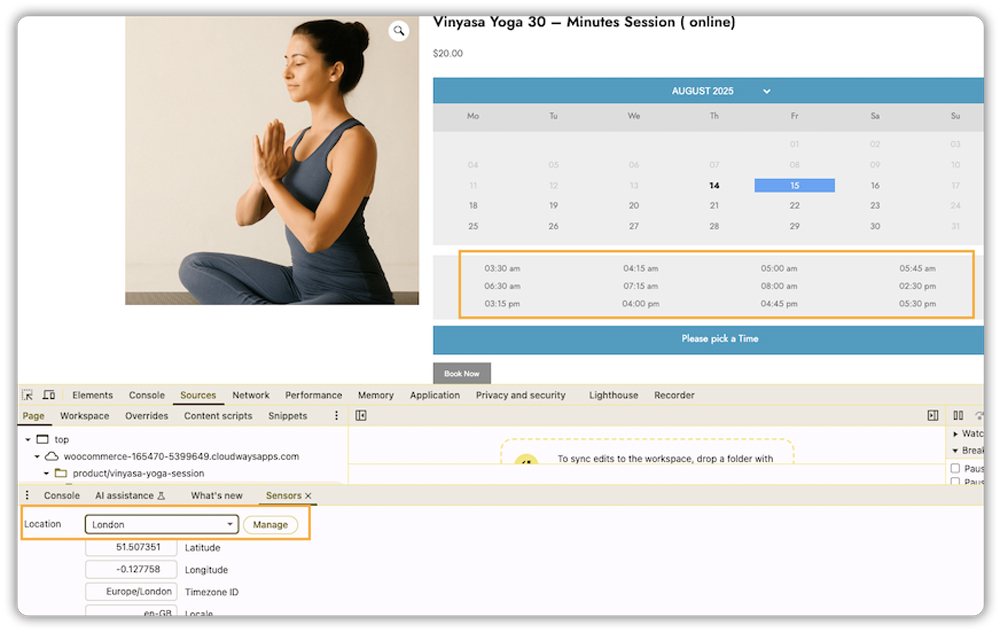
By enabling time zone support, you make booking easier and more reliable for customers, whether they’re across town or across the world.
Need a detailed breakdown on handling time zones in WooCommerce Bookings? Check out this guide: WooCommerce Booking Timezone
4. Not Providing Flexible Booking Options in WooCommerce
Many store owners restrict their booking options, such as offering only full-day slots, limiting service types, or not allowing families or groups to book together. While this may seem manageable, it can frustrate customers who want more flexibility.
For example, A farm visit might only allow full-day bookings for all visitors. Some families may prefer half-day sessions, separate tickets for adults and children, or add-ons like lunch. If your booking system can’t handle these variations, potential customers may abandon the booking process and look for a service that offers this flexibility.
Solution: Provide flexible booking options to meet a variety of customer needs. With PluginHive WooCommerce Booking and Appointments, you can:
- Offer multiple booking durations for different services
- Allow families or groups to book together in the same slot
- Support a variety of service types and add-ons without complicating the booking process
- Make it easy for customers to select what works best for them, improving conversions and satisfaction
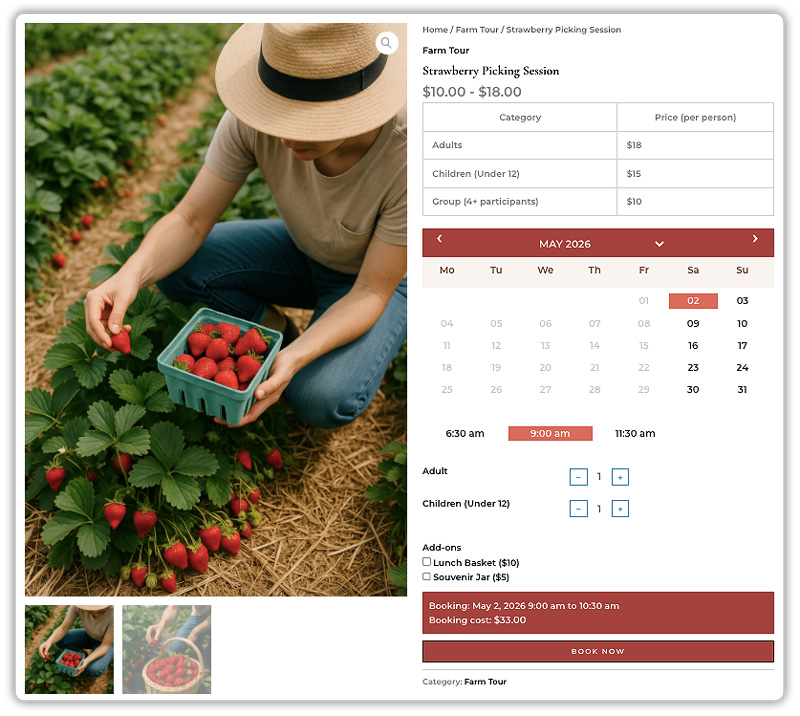
By offering more flexible booking options, you create a smoother, customer-friendly experience while reducing manual scheduling work for your team.
5. Overlooking WooCommerce Payment and Cancellation Policies
Some store owners set up their booking system without clearly defining payment or cancellation rules. This can lead to customers booking without paying, canceling last minute, or disputing charges, putting your business at risk.
Ignoring these policies can cause lost revenue, extra admin work, and unhappy customers who aren’t sure what to expect. Clear rules also help build trust in your store.
Solution: Make your payment and cancellation rules clear and easy to understand:
- Clearly define deposit requirements and partial payment options
- Set cancellation rules, such as restricting cancellations after a certain time, to prevent last-minute losses.

- Communicate policies upfront to avoid confusion
With the Bookings And Appointments for WooCommerce plugin, you can easily manage deposits and partial payments using the PH Deposits for WooCommerce, set cancellation rules, and automatically send payment links after booking confirmation. This ensures your customers know exactly what to expect, reduces no-shows, and saves your team time on manual follow-ups.
Note :
- Need help setting and managing cancellation rules? Check out this guide.
- To automatically send payment links after booking confirmation, refer to this setup guide.
6. Not Automating WooCommerce Booking Emails and Reminders
Many WooCommerce store owners rely on manual communication to confirm bookings, send reminders, or notify customers about changes. This can lead to missed appointments, confusion, and extra work for your team.
Without automated notifications, customers may forget their bookings, show up at the wrong time, or miss important updates. This affects customer satisfaction and can lead to lost revenue.
Solution: Automate your notifications to keep both your team and customers informed:
- Send instant booking confirmations via email

- Schedule reminders before the appointment
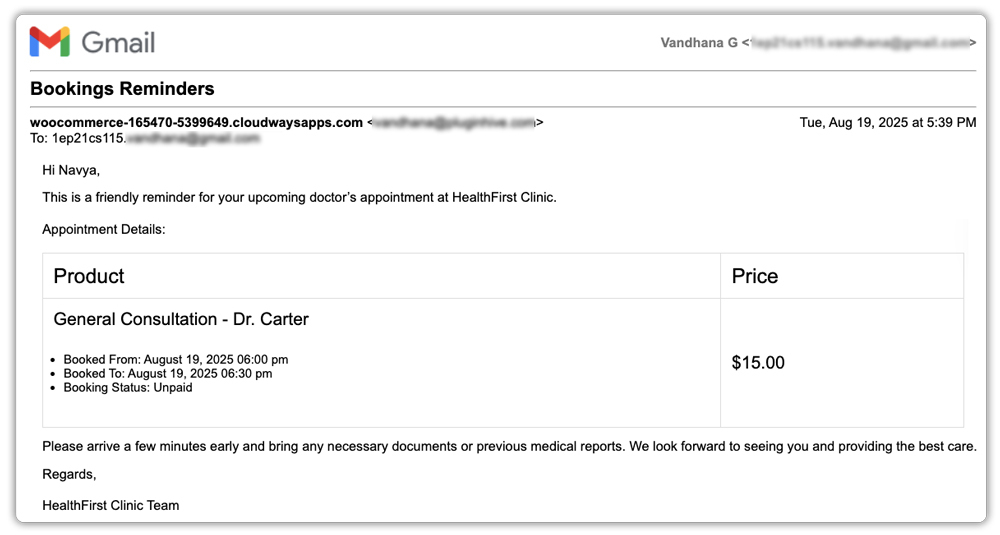
- Notify customers of any changes or cancellations

With the Bookings And Appointments for WooCommerce, you can set up automated notifications easily, ensuring customers are always informed and reducing no-shows, confusion, and manual follow-ups. The plugin also includes a feature to sync bookings automatically with Google, Outlook, or iCal, so both your team and customers have appointments added to their calendars, keeping everyone on schedule.
Note: For a detailed breakdown on configuring automated notifications, check out this guide.
7. Ignoring the WooCommerce Booking Calendar Interface
Many WooCommerce store owners focus on functionality but overlook how their booking calendar looks. A cluttered or confusing calendar can make it hard for customers to see available slots and choose the right time for their bookings.
Without a clear and intuitive calendar, customers may struggle to see which time slots are available. This can lead to frustration, booking errors, or even abandoning the booking process altogether.
Solution: Customize your booking calendar to make it simple and easy for customers to use:
- Highlight available and booked slots clearly
- Use color coding or labels for better visibility
- Keep navigation simple and intuitive
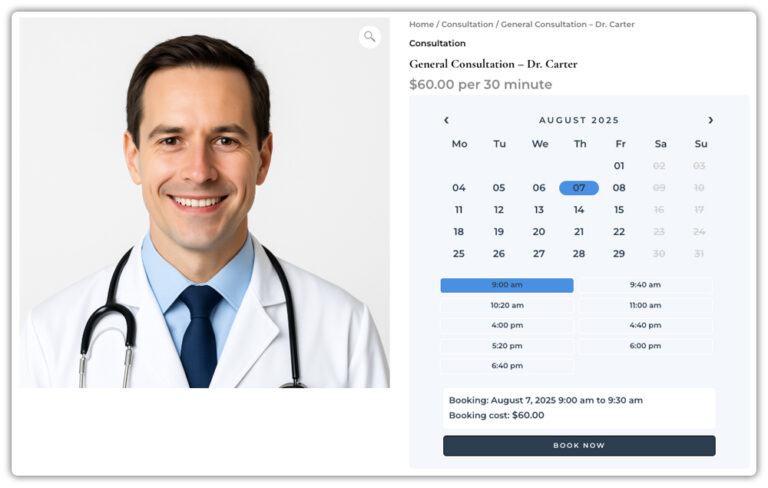
With the Bookings And Appointments for WooCommerce, you can customize your booking calendar to match your business style and workflow, making it easy for customers to view and book smoothly.
Note: For a detailed guide on customizing your WooCommerce booking calendar, check out this article.
Conclusion
If you’re making any of the common WooCommerce booking mistakes, it could be costing you time, revenue, and customer satisfaction. From choosing the wrong plugin and misconfiguring settings to overlooking notifications or calendar usability, small errors can have a big impact.
With the Bookings And Appointments for WooCommerce plugin, you don’t have to worry. The PluginHive support team can help you set up your bookings correctly, provide guidance on optimizing your system, and ensure you have the right solutions for your store’s needs, making booking management smooth, efficient, and hassle-free.
FAQs
1. What is the best WooCommerce booking plugin for my store?
For flexibility, ease of use, and robust features, the Bookings And Appointments for WooCommerce plugin is a top choice. It supports customizable services, automated notifications, payment handling, calendar sync, and more.
2. How can I avoid double bookings in WooCommerce?
Use the Bookings And Appointments for WooCommerce plugin, which manages availability properly, allows buffer times, and syncs with calendars like Google, Outlook, or iCal.
3. Can I automate reminders and notifications for bookings?
Yes! With the Bookings And Appointments for WooCommerce, you can send automated booking confirmations, reminders, and updates via email, keeping customers informed and reducing no-shows.
5. Can I customise the booking calendar to make it easier for customers in WooCommerce?
Absolutely. The bookings plugin lets you customise the calendar layout, highlight available and booked slots, and make navigation simple, improving the booking experience for customers.
6. What if I need help setting up my WooCommerce bookings?
PluginHive provides detailed setup guides and a friendly support team to help you configure your booking system according to your store’s needs.
