


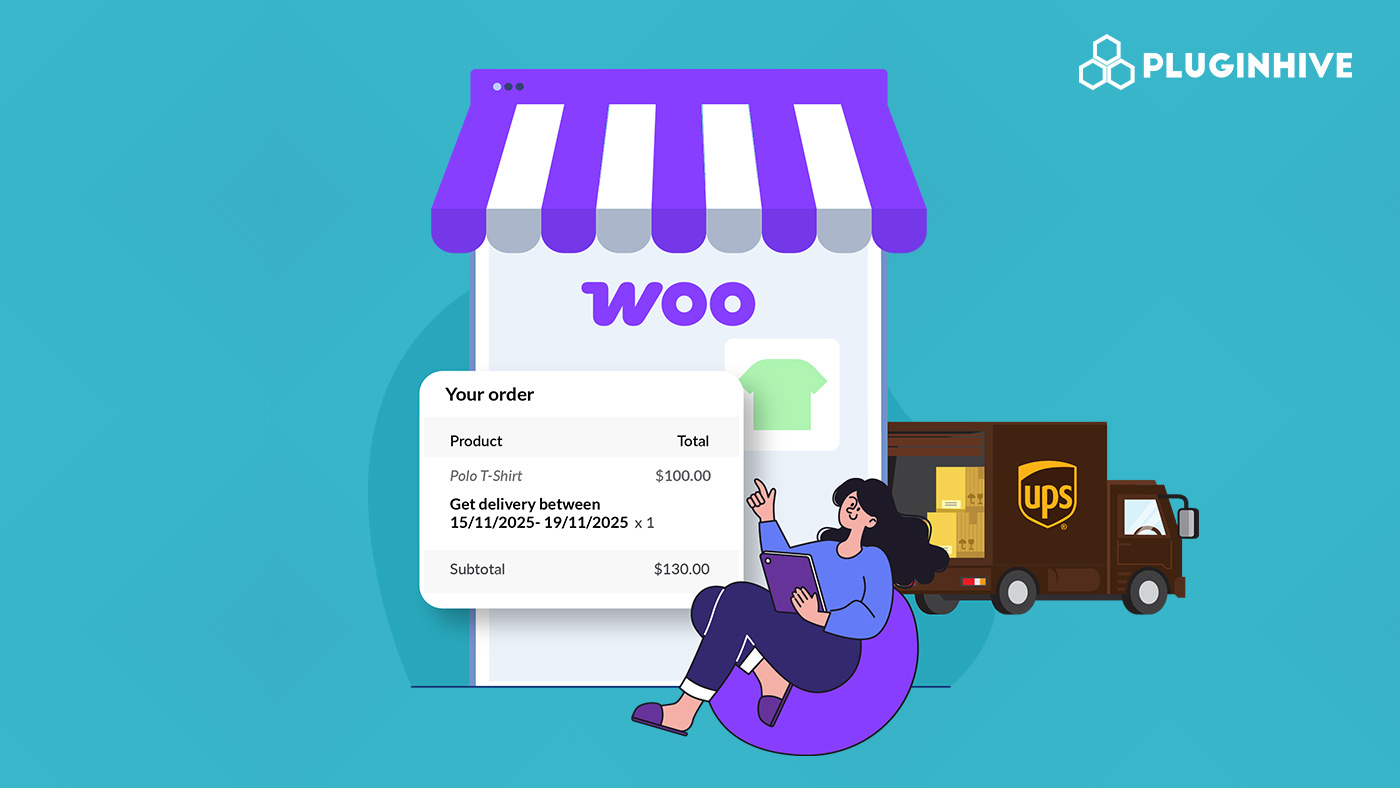
Today’s shoppers expect fast, transparent delivery timelines before placing an order. Displaying accurate delivery estimates at checkout helps WooCommerce stores build trust and reduce cart abandonment. When shipping with UPS, you can show customers exactly when to expect their orders, improving satisfaction and conversion rates in WooCommerce.
This guide explains how UPS delivery estimates work in WooCommerce, how to display them at checkout, and best practices for keeping them accurate.
On This Page:
- Understanding WooCommerce Delivery Estimates with UPS
- UPS Delivery Schedule: Weekdays, Weekends & Cut-Off Times
- How to Display UPS Delivery Estimates in WooCommerce
- Best Practices for Accurate UPS Delivery Estimates
- Conclusion
- FAQs
Understanding UPS Delivery Estimates in WooCommerce
For a WooCommerce store owner, displaying delivery estimates from UPS adds transparency and improves customer trust. Here’s how UPS calculates and presents those delivery estimates and what you need to know.
How UPS Calculates Estimates:
- UPS uses tools like the Time & Cost Calculator to determine service transit times based on origin, destination ZIP/postal codes, and service type.
- The transit-time maps show “business days” and exclude weekends and many holidays by default; the actual delivery day can shift if a ship date falls near a weekend or holiday.
- Service tiers matter: next-day and time-definite options (e.g., EOW by 10:30 a.m.) offer faster delivery at a higher cost.
When you show a delivery date at checkout, you’re effectively communicating the estimate derived from UPS’s transit logic, which helps align customer expectations.
Understanding how UPS generates delivery estimates lets you integrate those dates into your WooCommerce checkout with confidence, making sure your stated delivery day is realistic, fair, and reliable for your customers.
UPS Delivery Schedule: Weekdays, Weekends & Cut-Off Times
Understanding the delivery schedule and cut-off times of UPS is essential for WooCommerce store owners who provide delivery estimates at checkout. These details directly affect how and when goods must be shipped to meet delivery promises.
Weekday Deliveries
- For residential addresses, UPS delivers packages typically between 9:00 a.m. and 7:00 p.m. on weekdays.
- Commercial/business destinations often receive packages during standard working hours (e.g., 8:00 a.m. to 5:00 p.m.).
- Premium services such as Next Day Air Early offer guaranteed morning delivery (e.g., by 8:00 a.m.) for many ZIP codes.
Weekend Deliveries
- UPS offers Saturday delivery in many areas, for both residential and commercial addresses, often with an additional fee or specific service selection.
- Sunday delivery is more limited and typically available only for residential addresses in select regions and services.
Cut-Off Times & Their Impact
- A cut-off time is the latest time an order must be processed or handed over for UPS to meet its selected service level that day.
- For overnight services like Next Day Air, typical cut-off times range from 6:00 p.m. to 8:00 p.m. local time, depending on the location and service type.
- After a cut-off is missed, the delivery promise shifts forward by at least a full business day. For example, a Friday pickup after cut-off may mean Monday delivery instead of Saturday.
During peak periods, holidays, or remote locations, cut-off times may be earlier, and delivery times later, making it critical for WooCommerce stores to align fulfillment schedules with these limits.
By factoring in these scheduling realities, weekday vs. weekend service, residential vs. commercial delivery, and cut-off constraints, your WooCommerce store can present reliable delivery estimates at checkout and avoid over-promising.
How to Display UPS Delivery Estimates in WooCommerce
To display accurate UPS delivery estimates in your WooCommerce store, you’ll need to install and activate the WooCommerce UPS Shipping Plugin with Print Label. This plugin connects your store directly with UPS, fetches real-time rates, and automatically calculates and displays expected delivery dates at checkout.
For step-by-step installation and configuration, refer to the UPS Shipping Guide for WooCommerce.
After setting up your UPS account and connecting it to the plugin,
- Enable the option “Show Estimated Delivery Date.”
- You can also customize the display text, such as “Estimated Delivery” or “Delivery by…”, to match your store’s tone and checkout style.
- Additionally, set a daily order cut-off time; after this time, new orders will roll over to the next business day for delivery calculation.

- Once configured, the plugin fetches live UPS shipping services and delivery times based on the package weight, dimensions, and destination.

For stores that need greater control over how delivery dates appear (for example, adding buffer days, handling weekends differently, or syncing store holidays), you can use the Estimated Delivery Date Plugin for WooCommerce alongside the UPS Shipping Plugin.
Best Practices for Accurate UPS Delivery Estimates
To ensure your WooCommerce store provides reliable and transparent UPS delivery dates, follow these best practices:
- Define your daily order cut-off time within the UPS plugin settings to ensure the delivery estimates reflect your warehouse’s actual shipping schedule.
- UPS does not deliver on Sundays or certain holidays. Adjust your delivery estimate settings or add buffer days to ensure customers receive realistic delivery dates.
- Use the Hide WooCommerce Shipping Methods & Rate Adjustment Plugin to hide redundant or higher-cost UPS services. This keeps your checkout page clean and ensures customers always see the most relevant UPS options.
- When possible, display a range (e.g., “Delivery between Nov 14–16”) instead of a single date. This helps manage customer expectations and accounts for potential delays due to holidays or weather.
- Use the WooCommerce Shipment Tracking Pro Plugin to automatically share UPS tracking details with customers once an order is shipped. This enhances post-purchase transparency and reduces “Where’s my order?” inquiries.
By following these practices, your WooCommerce store can display precise UPS delivery estimates, improving checkout transparency and boosting customer trust.
Conclusion
Displaying accurate UPS delivery estimates improves customer trust and boosts conversions. Clear delivery timelines at checkout set realistic expectations and enhance the buying experience. Keep your shipping settings updated and review UPS schedules regularly to ensure estimates remain reliable.
For help setting up or troubleshooting UPS delivery estimates in WooCommerce, contact PluginHive Support.
FAQs
- How can I handle holidays when showing UPS delivery dates?
Use buffer days in your delivery estimate settings to account for UPS-observed holidays. This prevents over-promising and keeps your customers informed about potential delays.
- Can I manage estimated delivery dates for multiple UPS services with protection options?
Yes. The plugin supports all major UPS services, so you can calculate estimated delivery dates for shipments that include Declared Value, Insurance, and Signature Options. Check out this guide for more info: UPS Services in WooCommerce.
- How can I offer international UPS shipping in WooCommerce?
To provide global delivery options for your WooCommerce store, you can configure UPS international services. Read the detailed guide on setting up UPS international shipping in WooCommerce.
- Can I print UPS shipping labels in bulk for my WooCommerce store?
Yes. You can print multiple UPS labels in bulk with the UPS plugin. Check out this guide to learn more: Generate UPS Shipping Labels in Bulk.
- Can I track my UPS orders in WooCommerce?
Yes! You can track UPS shipments directly from your WooCommerce store. For detailed instructions, check out How to Track UPS Orders in WooCommerce.
